
Quantities Straight from Your Floor Plan
Draw in 2D, walk in 3D, take off by wall. SiteScope auto-derives quantities from floor plan geometry, paint gallons, wallpaper rolls, flooring sqft, trim length, with every opening already deducted.
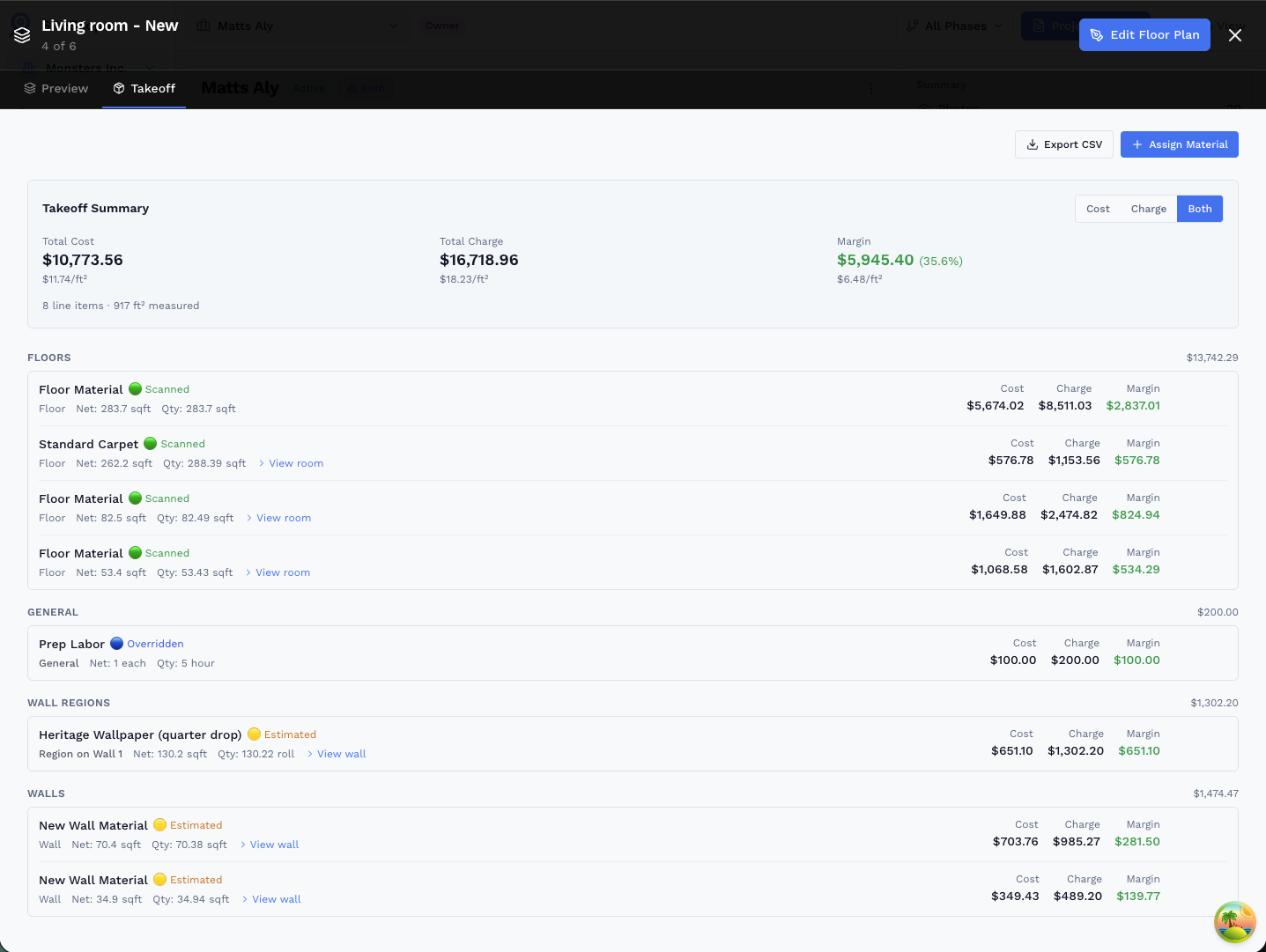
One Floor Plan. Three Views. Every Quantity.
SiteScope is the only tool that ties your 2D plan, 3D walkthrough, and per-wall elevation together, so the geometry that drives your takeoff is the same geometry you built and walked.
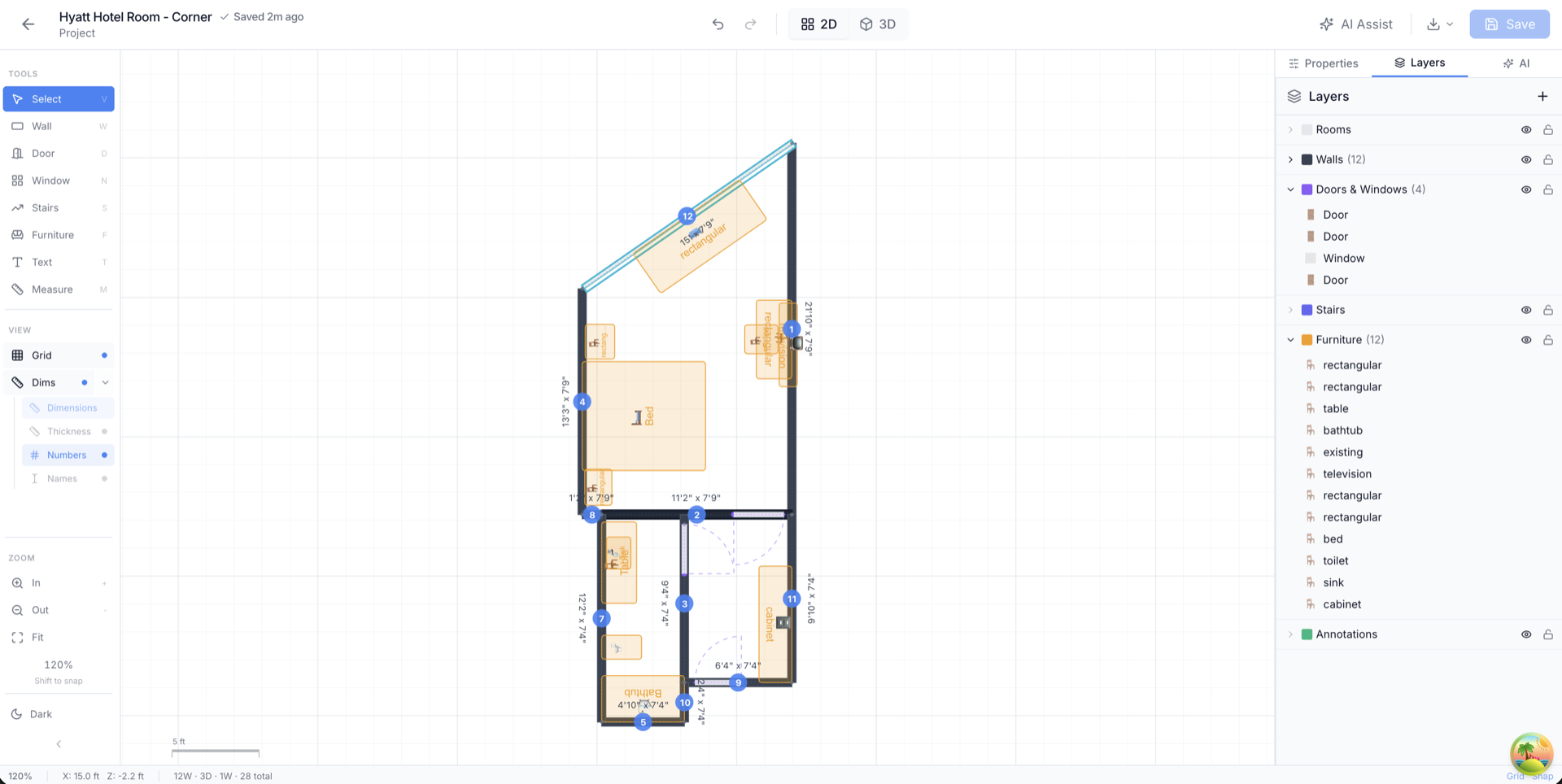
2D Floor Plan
Scan or trace your layout. Every wall gets exact length and height.
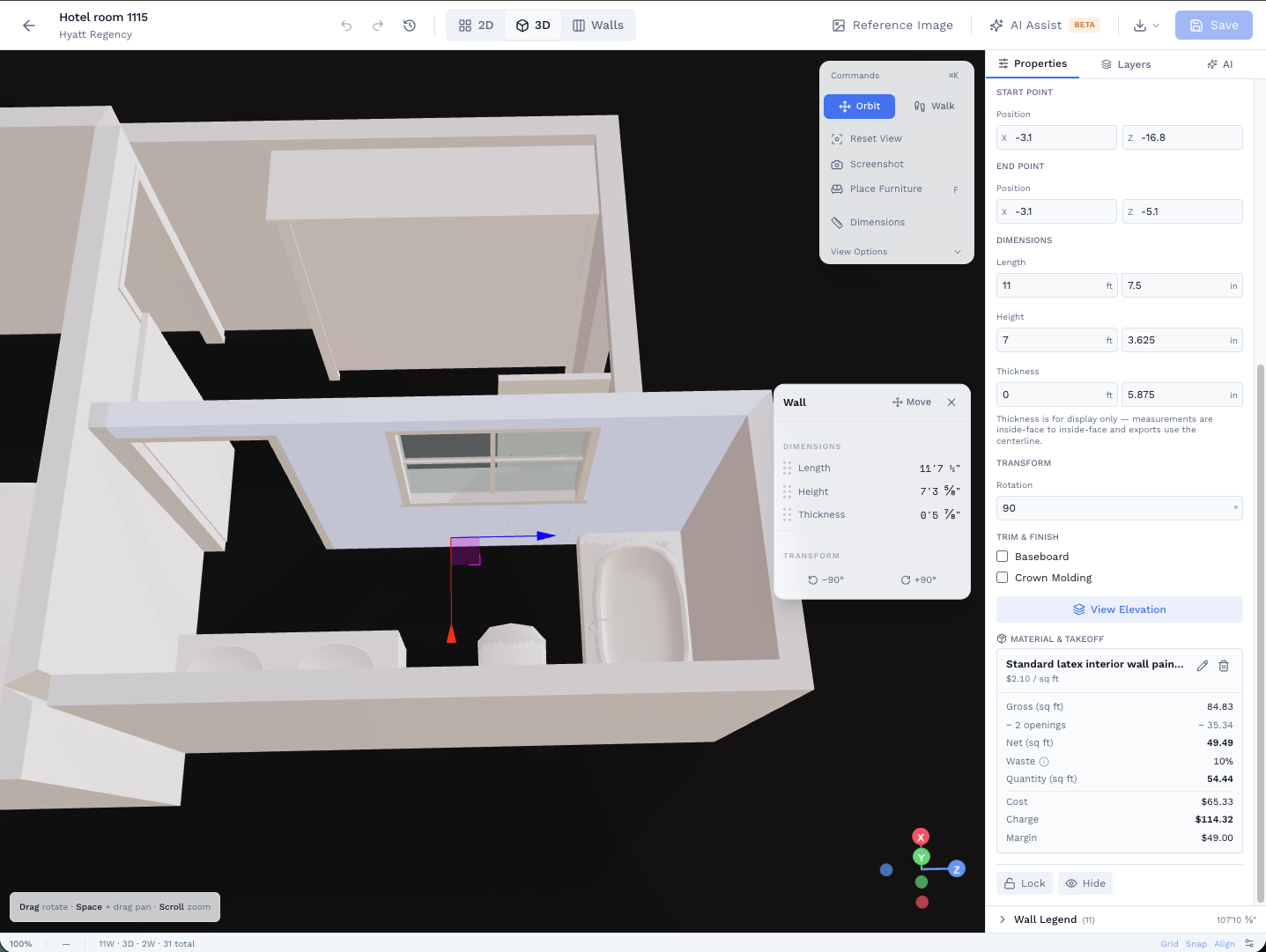
3D Walkthrough
Orbit or walk through the same model. Verify every room before you assign materials.
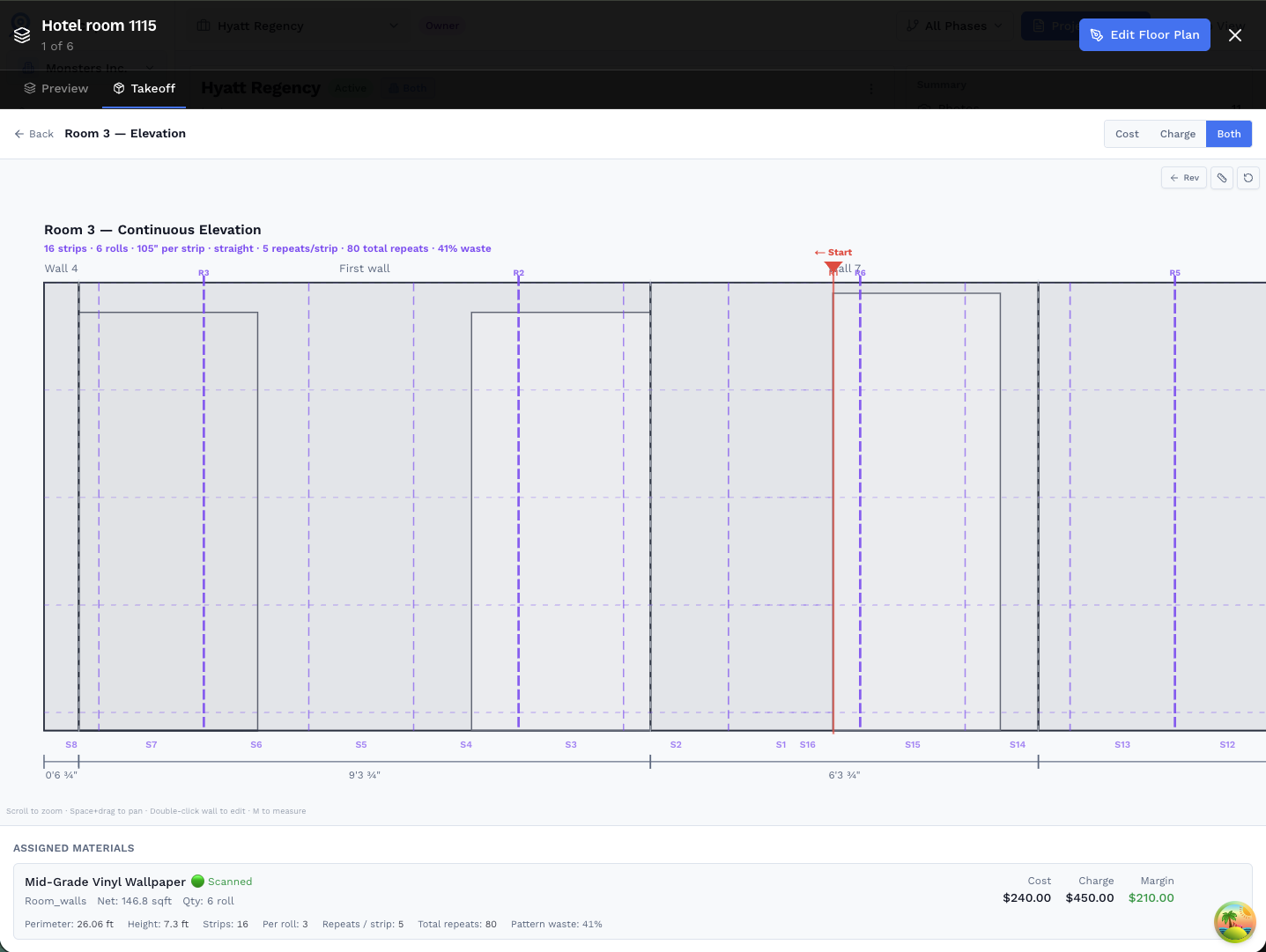
Wall Elevation & Takeoff
Stand each wall up in elevation, assign a material, get quantities with openings deducted.
How Takeoffs Work
Three steps from floor plan to bid-ready quantities.
Draw or Import the Plan
Scan with LiDAR, trace from a blueprint, or draw from scratch. Every wall gets length, height, and area tracked automatically.
Assign Materials Per Wall or Region
Open the Walls tab, pick a wall or region, assign a material. Doors, windows, and cutouts are deducted from net area automatically.
Export Summary + Line Items as CSV
Get a Takeoff Summary with total cost, charge, and margin, plus line items per material. Export to CSV and drop into any estimating tool.
Know Exactly How Accurate Each Quantity Is
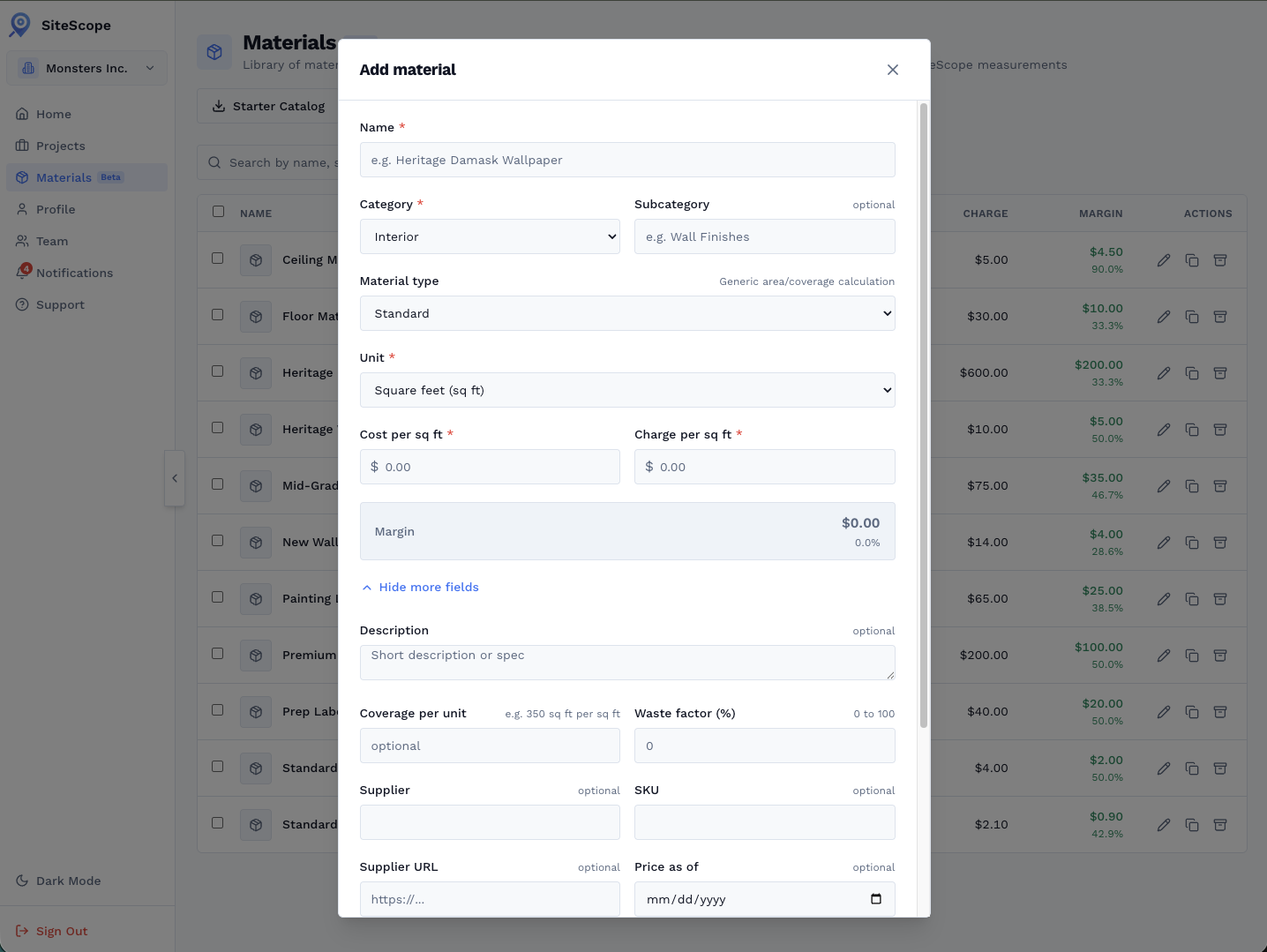
Every takeoff line is stamped with its source so you can see which numbers you can bank on and which are estimates.
Wall geometry came from a LiDAR scan, measured to the millimeter.
Dimensions were entered manually or traced from a blueprint.
You manually adjusted a quantity, your number takes precedence.
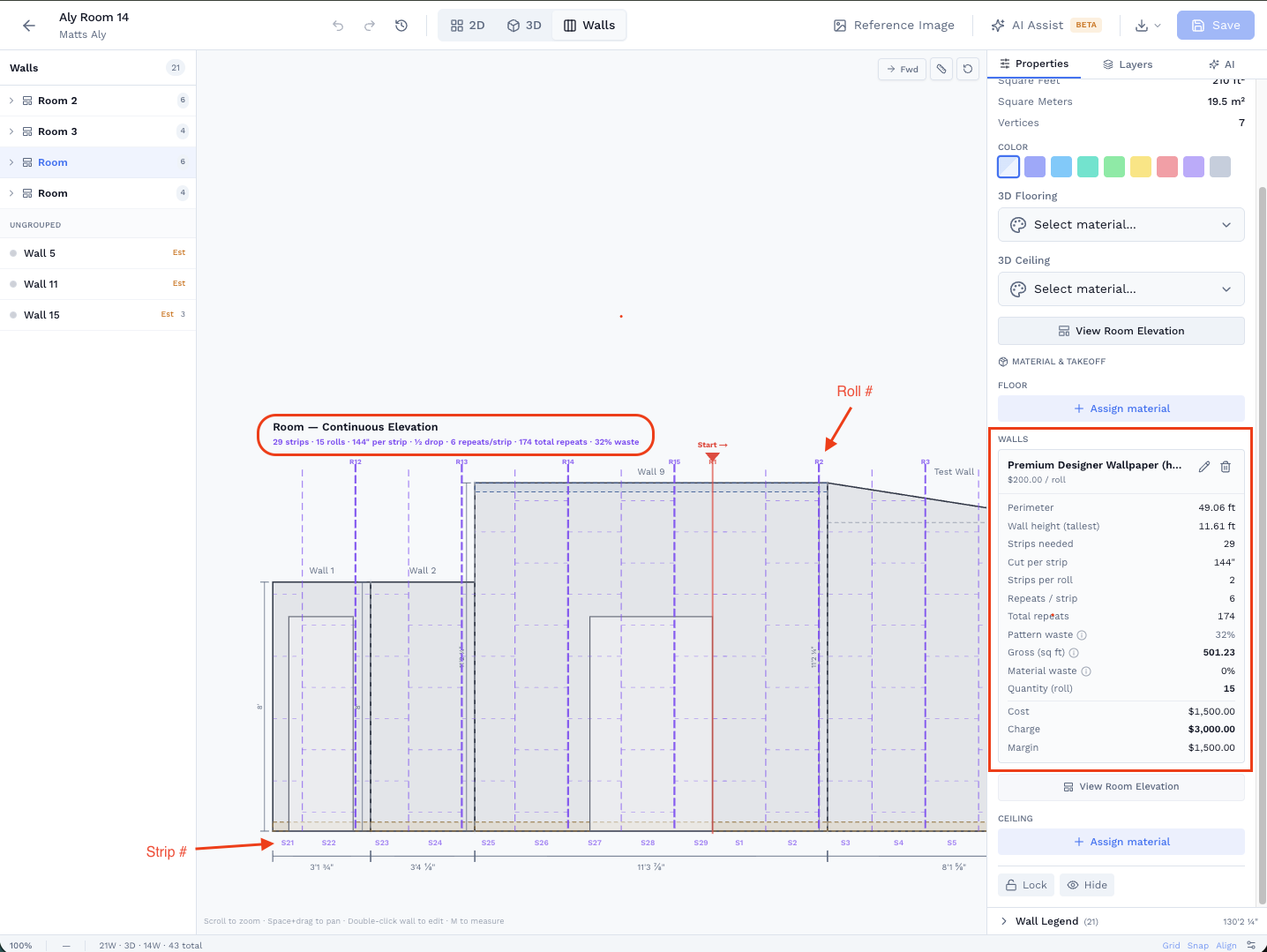
Wall elevation view, each wall's openings deducted, roll count and cost shown per wall
What You Get
The Takeoff Summary card plus itemized line items, ready to share or export.
Cost, Charge & Margin
Top-line summary card with total material cost, what you're charging the client, and your margin percentage.
Line Items by Material
Each material gets its own row, sqft or units, quantity, unit cost, line total. Grouped by category or sorted by room.
CSV Export
Export the full takeoff to CSV. Drop into your estimating spreadsheet, supplier order form, or client proposal template.
Takeoffs Include a Full PDF Report
Not just a spreadsheet. The PDF export includes per-wall elevation drawings with exact dimensions and a complete wall details table. Share it with a client or file it as a job record.
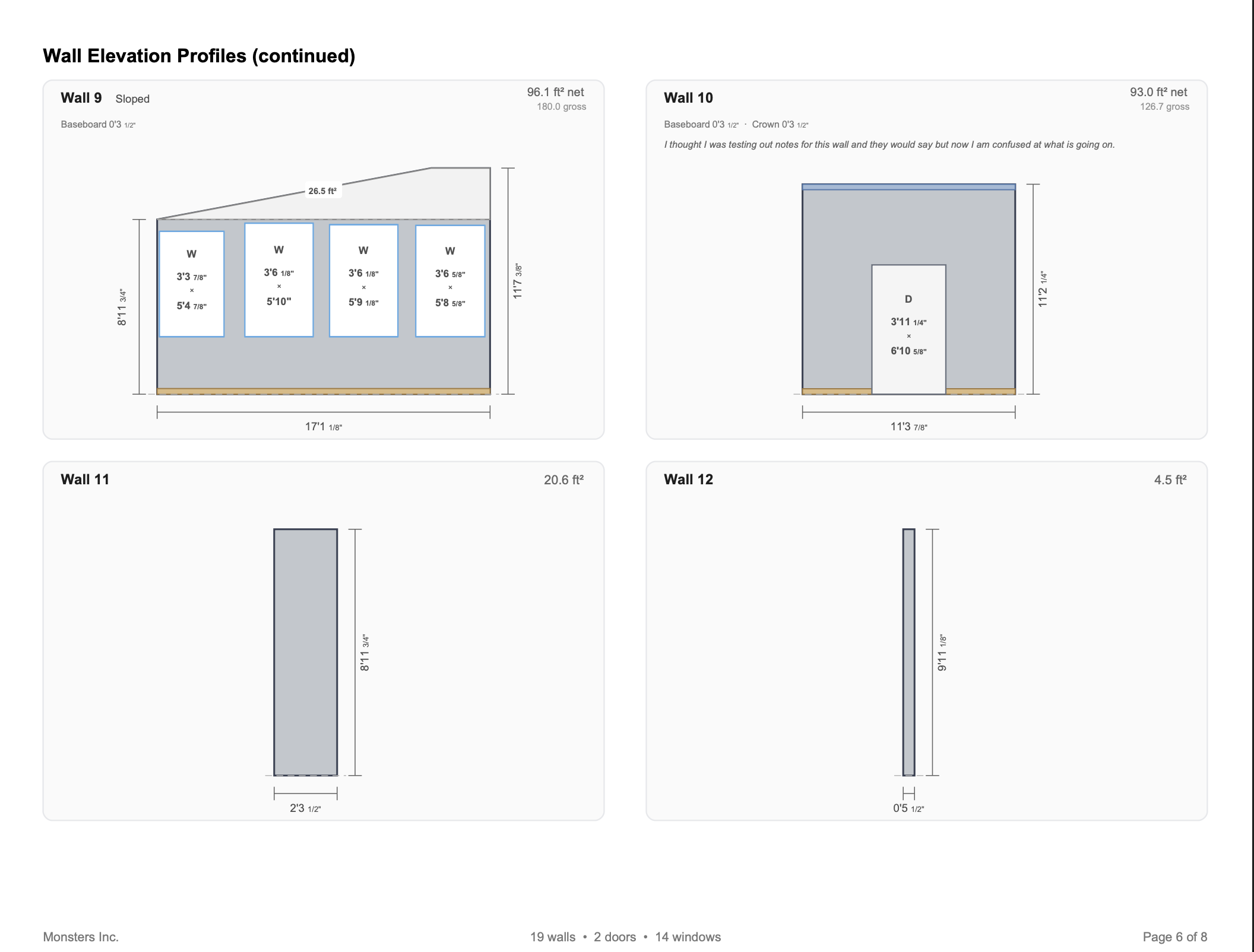
Wall Elevation Profiles: each wall drawn to scale with exact dimensions and openings labeled
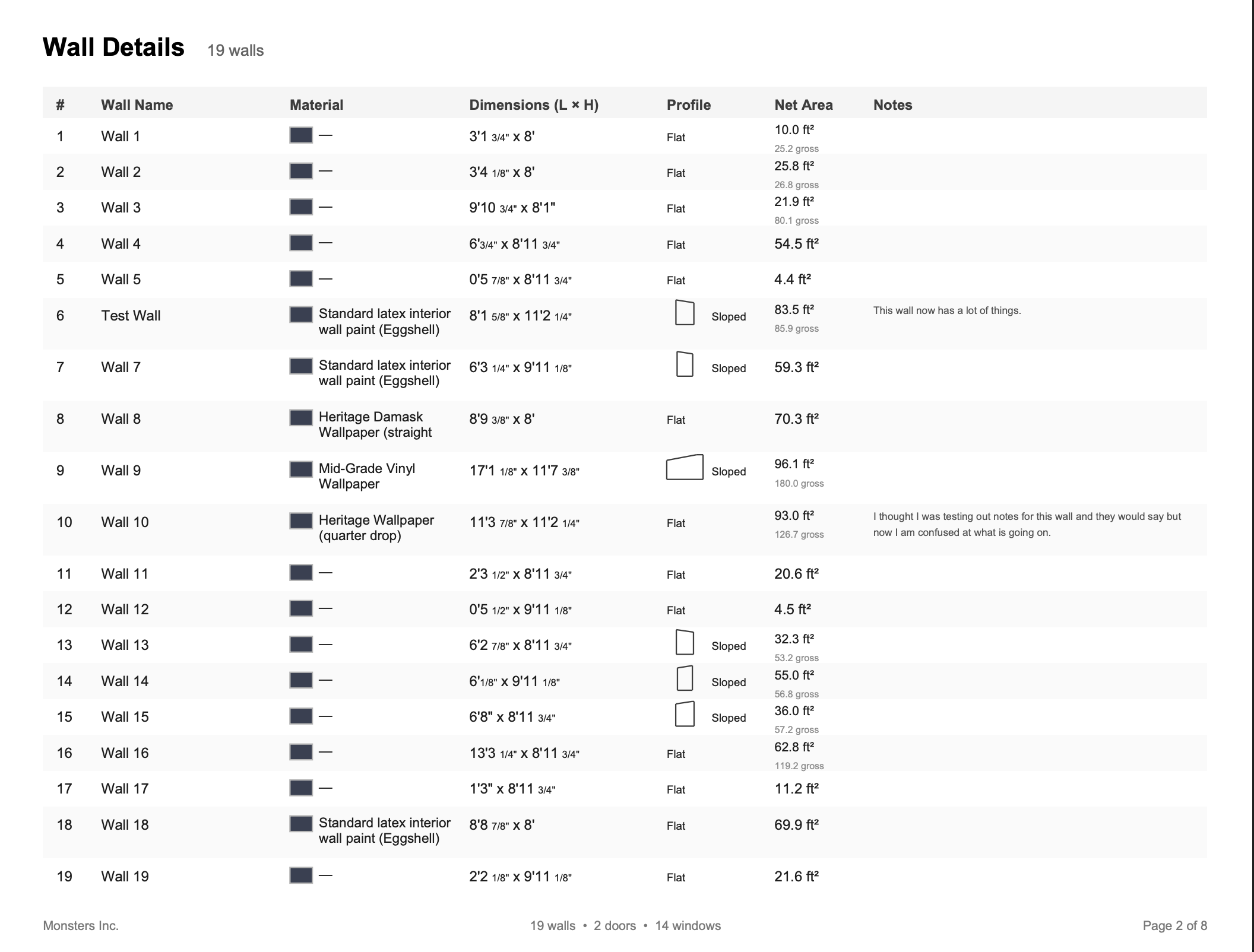
Wall Details Table: every wall listed with material, L×H dimensions, net area, and your notes
Materials Supported
Assign any material to any wall, region, or room. Currently used by professionals working with:
Ready to Get Started?
Join professionals who are already mapping and measuring their sites with SiteScope.