
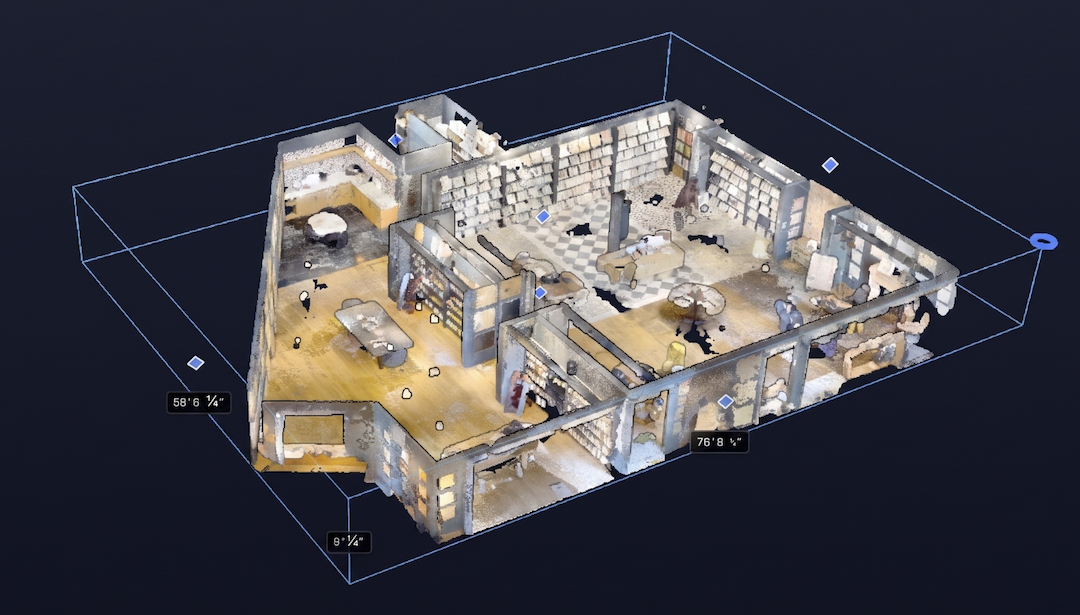
To capture a good point cloud with an iPhone Pro, walk one slow, continuous loop around the space with the phone upright, sweeping in a vertical S from floor to ceiling as you go, and stay within a few meters of the surfaces you want. Keep the lights on, avoid spinning in place or pointing straight at the floor, and do not go back over areas you finished long ago. Done that way, a phone scan gives you a room-scale point cloud that is solid for as-builts and renovation work, not a replacement for a survey-grade scanner.
This guide covers the technique, the limits, and what to do with the cloud afterward.
What You Need
- An iPhone Pro or iPad Pro with LiDAR. That is iPhone 12 Pro and later Pro models, and iPad Pro from 2020 on. The standard iPhone models do not have the sensor.
- A scanning app that records a point cloud, not just a room outline. In SiteScope, the point cloud lane is separate from the room scan lane (more on that below).
- Battery and storage. Dense captures are large files. Start with a charged phone and free space.
How iPhone LiDAR Works, in One Paragraph
The LiDAR sensor fires infrared points and times their return to measure depth. Apple’s ARKit combines that depth with the camera and motion sensors to track where the phone is as you move. Every frame adds measured points to the cloud in the right place, as long as tracking holds. That last part is the whole game. Almost every bad phone scan is a tracking problem, not a sensor problem.
The Walking Technique That Works
One loop, not several passes
Walk the perimeter of the room once, in one direction, at a steady pace. Capture the floor and ceiling inside that same loop. The common instinct is to do the walls, then a floor pass, then a ceiling pass. Do not. Phone tracking drifts slightly over time, and coming back over the same surface later can write a second, slightly offset copy of it. That is how a thin wall turns into a thick smear.
Sweep a vertical S
As you move along a wall, tilt the phone down toward the floor, sweep up the wall, go a little into the ceiling, step sideways, and come back down. Think of spray painting the wall evenly. This covers floor, wall, and ceiling in one pass, and the sideways step gives tracking the movement it needs.
Move your body, not just your wrist
Tracking needs the phone to change position, not just angle. Turning in place, or pointing straight down at a bare floor, gives ARKit very little to work with. Walk. When you need to see the floor, step back and tilt, instead of aiming straight down at your feet.
Keep a steady pace
Slow and even beats fast and jerky. Quick turns blur the camera image that tracking relies on. At the other extreme, standing still for a long time adds nothing and can wear on the phone’s heat budget.
Pause only for doors
If you need to stop, for a closed door or someone walking through, pause, keep the phone up, and resume where you left off. Do not walk to another part of the building while paused and pick up from there.
Distance and Range Limits
Apple rates the LiDAR sensor for distances up to about 5 meters (roughly 16 feet). Past that, returns get sparse and less reliable. Very close is also a problem: with the phone almost touching a wall, the sensor gets little usable depth.
In practice:
- Aim for arm’s length to a few meters from the surfaces you care about.
- Tall ceilings and big rooms need you to walk closer to the far walls rather than scanning them from the middle.
- Atriums and double-height spaces will leave the upper parts thin. Plan to verify those heights another way.
Lighting, Glass, Mirrors, and Dark Surfaces
Lighting. The depth sensor works in the dark, but tracking and color come from the camera. Turn the lights on and open blinds for color, but avoid pointing straight into bright windows for long stretches.
Glass. Infrared passes through clear glass or bounces off it. Expect windows and glass partitions to show up as holes, or as points that belong to whatever is outside. Trim those afterward.
Mirrors. A mirror shows the sensor a fake room behind the wall. Points appear where nothing exists. Delete them in cleanup, or cover large mirrors before you scan.
Dark and glossy surfaces. Black finishes absorb infrared and high-gloss surfaces scatter it, so those areas come back thinner. Slow down and get a little closer.
Outdoors. Bright sunlight competes with the sensor’s infrared, which cuts effective range. Close-up facade work can be fine. Large exteriors are not what phone LiDAR is built for.
Heat and Long Scans
Dense scanning works the phone hard, and phones throttle when they get hot. Start with a cool phone, keep it out of direct sun, and scan in sensible chunks, such as a floor or a wing at a time, rather than one enormous capture. If the app warns you about heat, that is a signal to finish the current area rather than push on.
Point Cloud Scan or Room Scan?
SiteScope has two capture lanes, and they answer different questions:
- Room scan (Apple RoomPlan). Produces a measured 2D floor plan with walls, doors, windows, and room areas. Best when you need a plan, takeoffs, or an IFC and DXF export.
- Point cloud scan. Records the actual surfaces as millions of colored points. Best when you need the as-is geometry: out-of-square walls, exposed structure, soffits, equipment, and anything a plan simplifies away.
Many jobs use both. See how they fit in 3D scanning in SiteScope.
What Phone LiDAR Is Good For
- Renovation and retrofit as-builts
- Existing-conditions documentation for design work
- A reference cloud to model against in Revit, ArchiCAD, or SketchUp
- Capturing exposed ceilings, soffits, and equipment locations a plan leaves out
- Communicating a space to people who were not on site. The same SiteScope capture also feeds a photoreal walkthrough you can share by link
What It Is Not Good For
- Survey-grade work, control networks, or legal boundary measurements
- Tolerances tighter than the sensor can hold, such as fabrication measurements under a centimeter
- Large exteriors, tall industrial spaces, and long corridors without verification
- Anything behind glass or mirrors without cleanup
Honest Accuracy Expectations
Room-scale LiDAR captures typically land within a couple of centimeters over a normal room. That is the right band for renovation, space planning, and design documentation. Error grows over long walking distances, because small tracking errors add up. Glass, mirrors, and dark gloss are the weak spots.
Treat the scan the way you would treat any field survey: capture fast, then confirm the dimensions that are code-driven or fabrication-driven with a tape or laser. Our iPhone LiDAR accuracy breakdown goes deeper on where it holds up.
Exports: E57, LAZ, and PLY
SiteScope exports the point cloud in three formats:
- E57. The open scanner-industry exchange format. Use it for Autodesk ReCap and Revit. See how to import an E57 into Revit.
- LAZ. Compressed LAS. Smaller files for point cloud tools and GIS workflows.
- PLY. A simple, widely supported format for general 3D and point cloud software.
The scan and every export stay yours to keep.
A Quick Checklist
- Phone charged, cool, and with free storage
- Lights on, doors open, big mirrors noted or covered
- Start in a corner with the phone upright
- One continuous loop, vertical S sweeps, steady pace
- Step and tilt to see the floor, do not aim straight down
- Stay within a few meters of the surfaces you need
- Pause only for doors, phone up, resume where you stopped
- Review the cloud before you leave, and spot check critical dimensions
If you have an iPhone Pro or iPad Pro, you can start for free and run your first point cloud scan today. Comparing tools first? See our roundup of iPhone LiDAR scanner apps.
FAQ
Which iPhones can scan a point cloud?
iPhone 12 Pro and later Pro models, and iPad Pro from 2020 on. Those are the devices with the LiDAR sensor.
How far can iPhone LiDAR see?
Apple rates it for up to about 5 meters. Returns thin out beyond that, so walk closer to far walls instead of scanning them from across a large room.
Why does my scan show double walls?
Usually from going back over an area long after the first pass, or from separate floor and ceiling passes. Small tracking drift makes the second pass land slightly offset. Scan in one continuous loop.
Is an iPhone point cloud accurate enough for as-builts?
For renovation and existing-conditions work, generally yes. Room-scale captures typically land within a couple of centimeters over a normal room. Verify critical dimensions in the field, as with any survey.
Can I scan outside with an iPhone?
Close-up facade details, yes. Large exteriors, no. Sunlight reduces range and the 5 meter limit makes big buildings impractical.