
You can survey a space remotely by sending the client a guest scan invitation. They install the free SiteScope app on their iPhone Pro or iPad Pro (no account to create), scan the room by walking around it, and the scan uploads straight into your project as a measured floor plan (or a point cloud, if you asked for one). You review, refine, and work from it at your desk, and you save the site trip for when being there actually matters.
This post is the practical how-to: setting it up, what the client sees, what you get back, and how to help a non-expert capture a good scan. If you want the business case for trades, see guest scanning and the cost of a 30 percent hit rate.
When a Remote Survey Makes Sense
A remote survey is a good fit when you need real dimensions but not a trained eye on site yet:
- Early design and space planning before a first meeting
- Pre-bid measurements for paint, wallpaper, tile, and wall coverings
- Qualifying a lead before you commit a half day to driving out
- Out-of-town projects where a trip is expensive
- Property managers and repeat clients who can scan a unit themselves
It is not a replacement for seeing surface conditions, hidden damage, or structure in person, and it is not a final measure before you order materials. Use it to get started faster, then visit when it counts.
What the Client Needs
- An iPhone Pro or iPad Pro with LiDAR, which means iPhone 12 Pro or newer Pro models, or a recent iPad Pro. Standard iPhones do not have the sensor. A quick way to check: the LiDAR sensor is the small black dot next to the camera lenses on the back.
- The SiteScope app from the App Store. The invitation email links to it.
- Ten or fifteen minutes per room, including reading the tips.
They do not need to set up a project or learn the software. The invitation ties their scan to your project.
Step by Step: Setting Up a Guest Scan
1. Create the project
Set up the project in SiteScope with the address and a name the client will recognize. The guest scan will land here.
2. Invite the guest scanner
From the project, invite a guest scanner by email. Choose the scan type:
- 3D Room for a measured floor plan with walls, doors, windows, and room areas. Pick this for most estimating and space planning.
- Point Cloud for the as-is surfaces as millions of colored points. Pick this for existing-conditions work where you need exposed structure, soffits, or out-of-square walls.
Add a short personal message. It makes a real difference in whether the client does it the same day.
3. The client installs and opens the invitation
The client gets an email with an App Store link. They install the free SiteScope app but do not need to create an account. After installing, they open SiteScope, tap “I’m a Guest Scanner,” and enter the email address you invited to find the invitation. Invitations expire after 7 days, so a nudge on day two or three helps.
4. The client scans
The app walks them through it with on-screen guidance. For a room scan, they walk the room and the app outlines walls, doors, and windows as it goes.
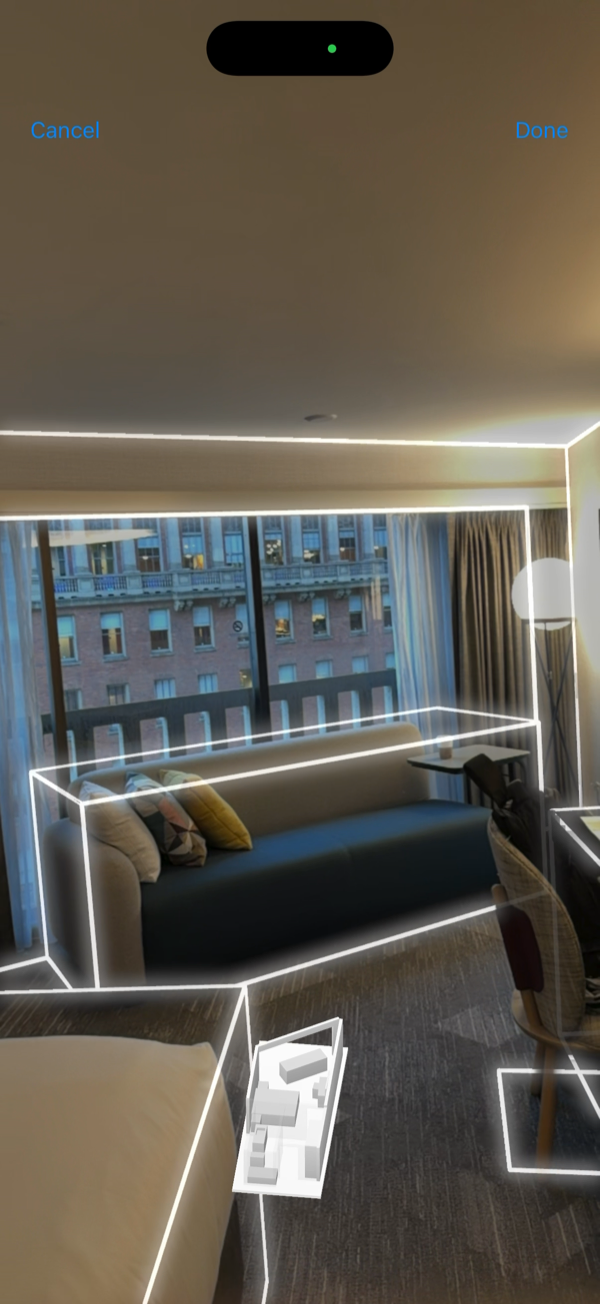
5. The scan uploads to your project
Room scans upload over Wi-Fi or cellular. Point cloud scans are much larger files and wait for Wi-Fi by default, so ask point cloud guests to stay on home Wi-Fi until the app says it is done.
What You Receive
From a 3D Room scan: a measured floor plan in your project, with walls, doors, windows, and room areas. Open it in the web editor to straighten anything the scan read slightly off, place any openings it missed, and name the rooms. From there:
- Trades run paint, wallpaper, tile, and wall covering takeoffs with openings deducted, and build the quote
- Architects and designers export DXF, IFC, or a PDF plan set
From a Point Cloud scan: the cloud in your project, which you can orbit and measure in the browser and export as E57, LAZ, or PLY for ReCap, Revit, and other point cloud tools.
Either way, the scan is yours to keep and reuse in the project.
A Message Template You Can Send
Copy, adjust, and send alongside the invitation:
Hi [Name], to get you an accurate [quote / layout] without a trip out first, could you scan the [rooms] with your iPhone? You will get an email from SiteScope. Install the free app (no account needed), tap “I’m a Guest Scanner,” and enter this email address. Before you start: turn on the lights, open the doors, and move small things away from the walls. Walk slowly around the edge of each room with the phone upright. It takes a few minutes per room. Thanks!
Tips for Good Guest Scans
Most clients have never scanned anything. These are the tips that matter most, in plain language you can pass along:
- Lights on, doors open. The phone tracks better in a well-lit room, and open doors get captured as openings.
- Clear the walls a little. Move laundry baskets, boxes, and chairs away from walls where you can. The scan reads walls, not clutter.
- One room at a time. Start in a corner and finish the room before moving on.
- Walk the edge slowly. Steady and unhurried, not spinning in the middle of the room.
- Phone upright, sweep up and down. Point at the wall, not straight at the floor.
- Watch for mirrors and big windows. They can confuse the sensor. A slower pass near them helps.
- Stay in Wi-Fi range for point clouds. Keep the app open until the upload finishes.
For point cloud guests, the iPhone LiDAR point cloud guide has more detail on technique.
How Accurate Is a Guest Scan?
The sensor is the same one you would use on site. Room-scale LiDAR captures typically land within a couple of centimeters over a normal room. The variable is technique: a rushed scan by a first-timer can miss a closet or misread a wall behind furniture.
So review every guest scan before you rely on it:
- Does the room count match what the client described?
- Are the doors and windows where you would expect?
- Does one dimension match a number the client can give you with a tape?
Then treat it like any remote measurement. It is excellent for a first quote, early layout, and planning. Confirm the numbers that drive material orders or fabrication before you commit.
If the Client Does Not Have an iPhone Pro
Guest scanning needs LiDAR, so a standard iPhone or an Android phone will not work for capture. Options:
- Ask whether anyone in the household or building has a Pro model. It only takes one device.
- Trace an existing plan. A listing plan or old drawing, uploaded as a reference with a known dimension for scale, gets you a working plan. See what AI floor plan tools can and cannot do.
- Visit and scan it yourself. One trip, and you leave with the measured plan.
Remote Survey vs Site Visit
| Guest scan | Your own site visit | |
|---|---|---|
| Travel | None | Round trip |
| Measured plan | Yes | Yes |
| Surface condition and hidden issues | Limited to what the client shows you | Yes |
| Scan quality | Depends on the client’s technique | Your technique |
| Best for | First quotes, early design, qualifying leads | Final measure, complex conditions |
For many jobs, the right answer is both: guest scan first to get moving, one visit later for the things only you can judge.
If you want to try it on your next lead, start for free, create a project, and send your first guest invitation (guest scanning is included on Pro and Business plans). For teams sending invitations at volume, talk to us. More on the capture side is on the 3D scanning page.
FAQ
Can a client scan their own home for a quote?
Yes, if they have an iPhone Pro or iPad Pro with LiDAR. You send an invitation by email, they install the free SiteScope app and scan, and the scan lands in your project. They do not need to create an account.
Does the client need a SiteScope account or subscription?
No account and no subscription. They do need the free SiteScope app: they install it, tap “I’m a Guest Scanner,” and enter the email address you invited. The scan belongs to your project.
How long does a guest invitation last?
Invitations expire after 7 days. Send a reminder if the scan has not arrived after a day or two.
Can guests scan a point cloud, not just a floor plan?
Yes. Choose Point Cloud when you create the invitation. Point cloud uploads are large and wait for Wi-Fi by default.
Is a guest scan accurate enough to order materials?
It is accurate enough for a first quote and planning. Before you order or fabricate, confirm the key dimensions with a site visit or a tape measurement.